Edit your site.
Right from your machine.
PageWright is a desktop code editor for Windows with built-in FTP, FTPS, and SFTP support. PageWright uses the Monaco editor (the same engine behind VS Code) and adds live preview, automatic backups before every save, drag-and-drop file management, AI chat, and an SEO/GEO auditing engine. PageWright runs locally — no cloud, no subscription, no accounts. Vibecoders use PageWright to deploy AI-generated code. Webmasters use PageWright to manage dozens of sites. Expression Web users switch to PageWright as a modern replacement. Just $5.99 — one-time, not monthly.
Vibing code with AI, just starting out, or maintaining 50 sites
New to Web Development
- Edit files directly on your hosting provider — no complicated setup
- See your changes in real-time with live preview
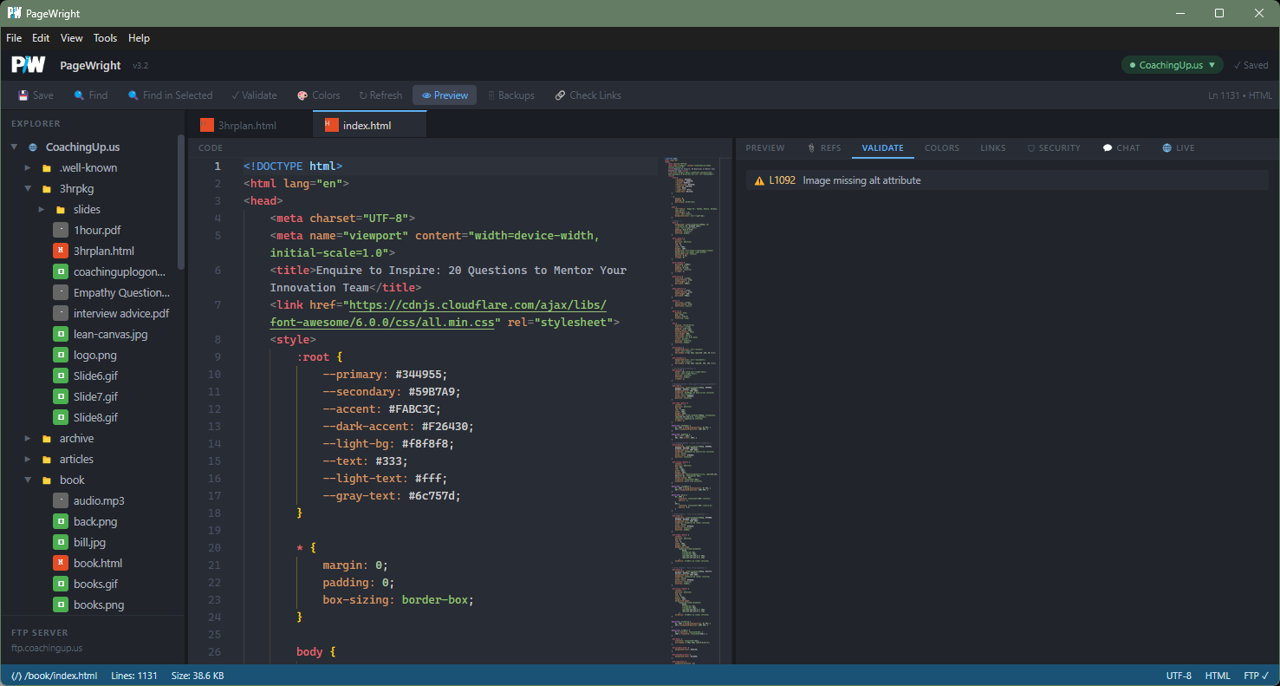
- Built-in HTML/CSS validation catches mistakes before they go live
- Automatic backups mean you can always undo a mistake
- No command line, no Git, no build tools — just open and edit
- First-run guide walks you through connecting to your site
Experienced Webmasters
- Monaco editor (VS Code engine) with syntax highlighting for 50+ languages
- FTP, FTPS, and SFTP support — works with any host
- Multi-site profiles — switch between clients in one click
- Find & replace across files with scope filtering
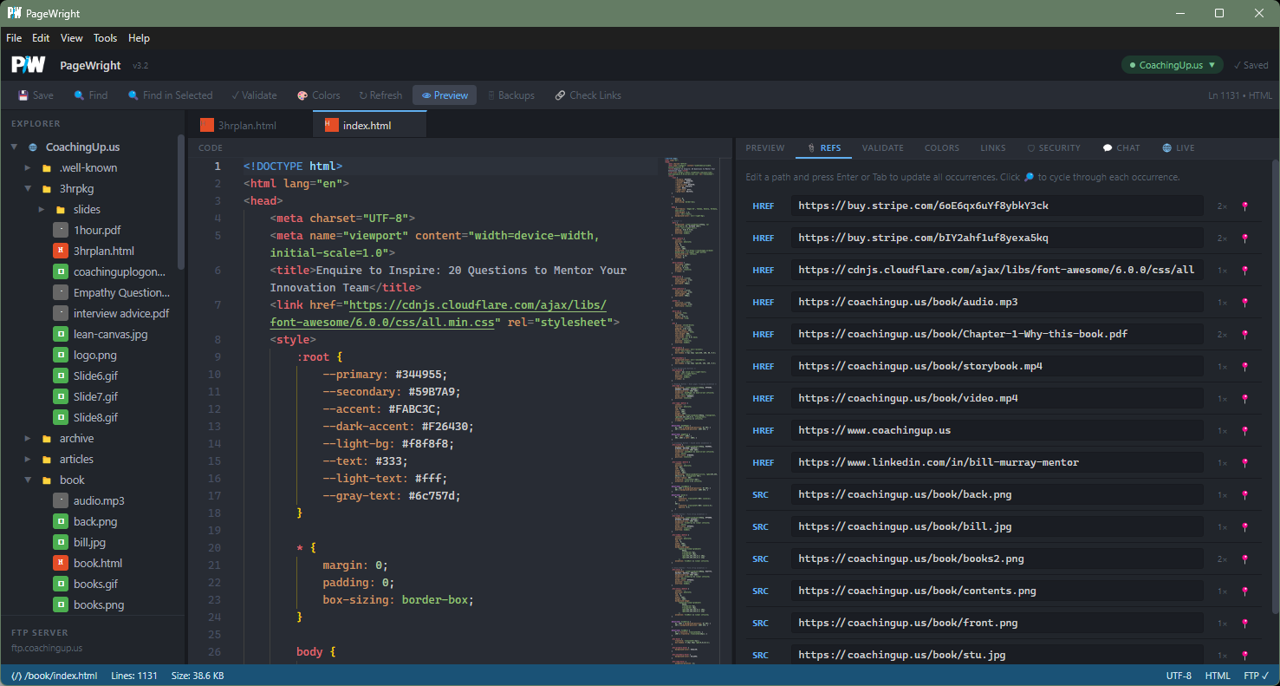
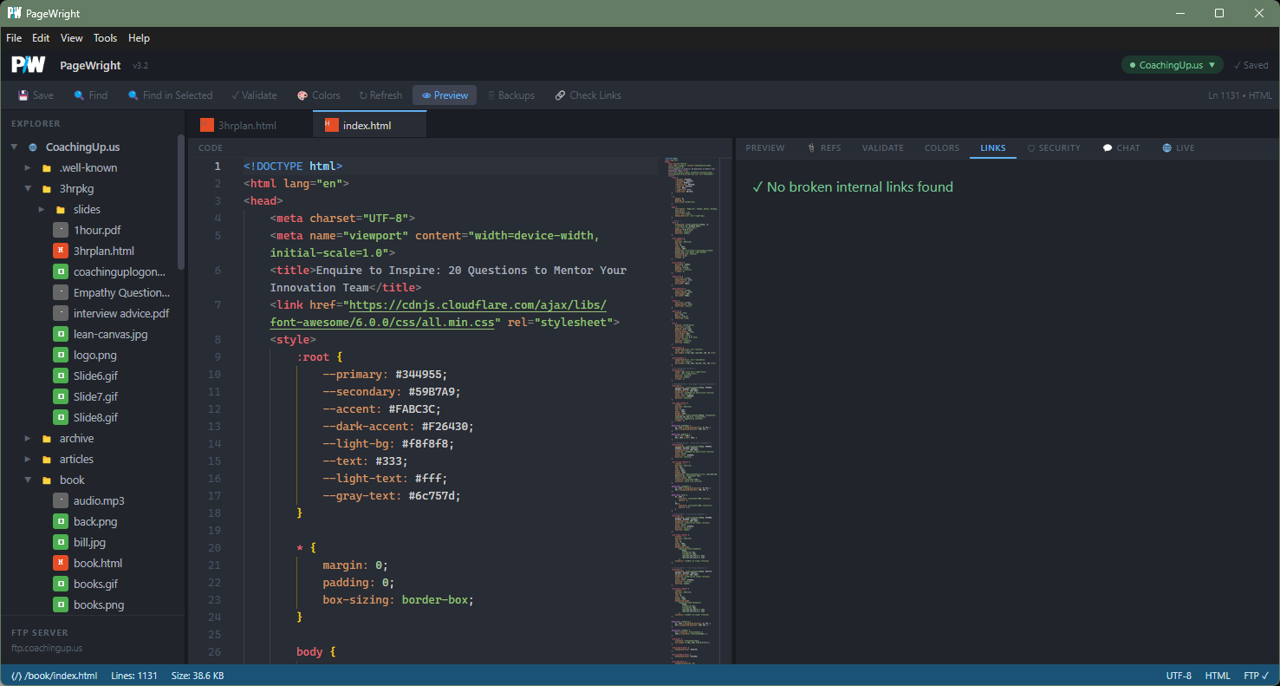
- Broken link checker scans your entire site
- Run multiple instances to work on several sites simultaneously
- Expression Web refugee? This is your upgrade path
Everything you need, nothing you don't
Monaco Code Editor
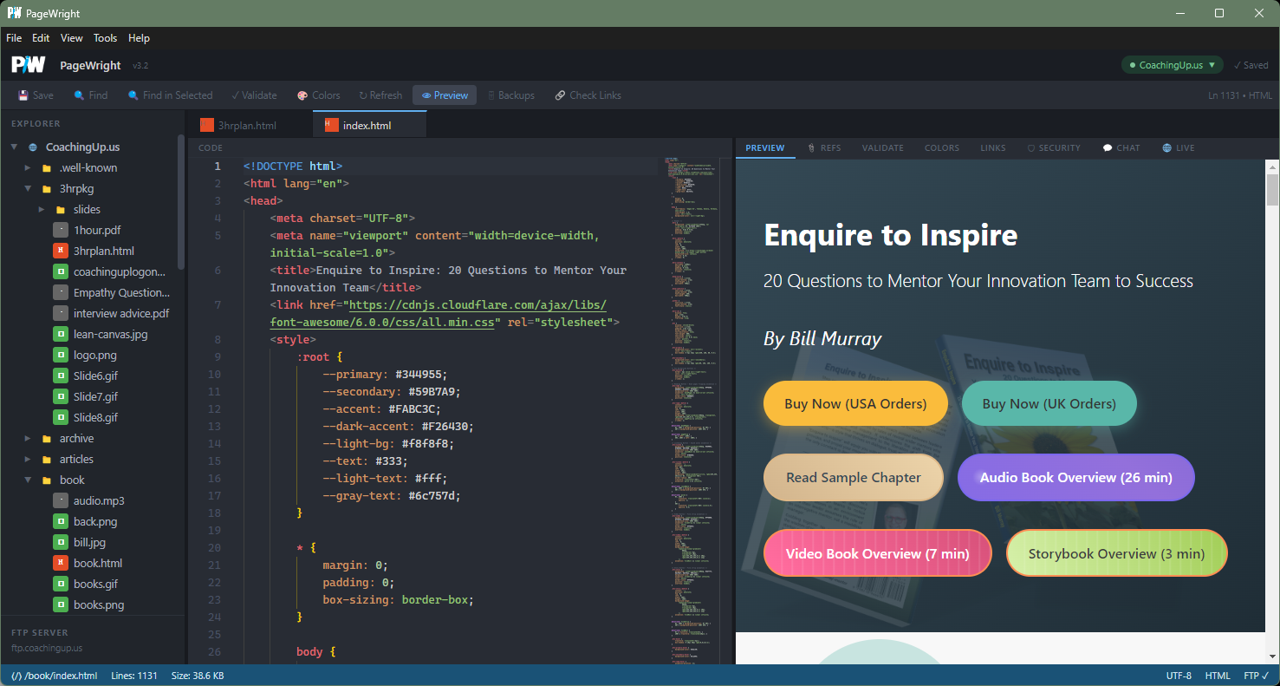
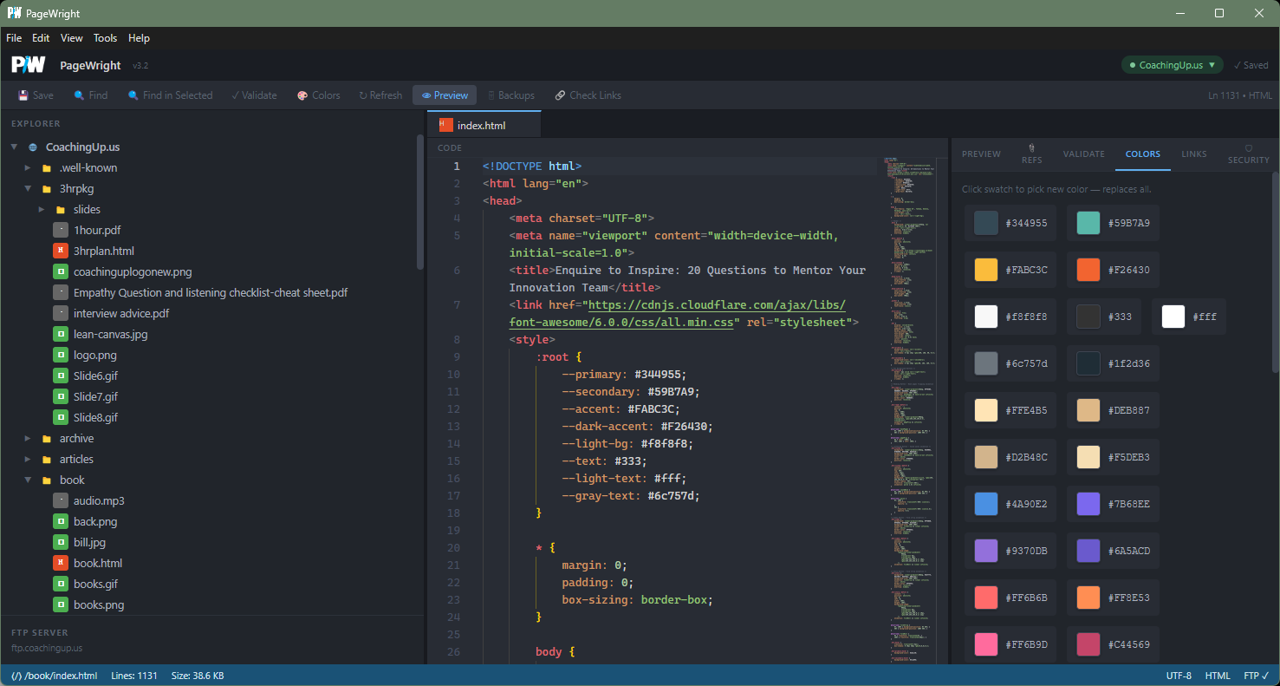
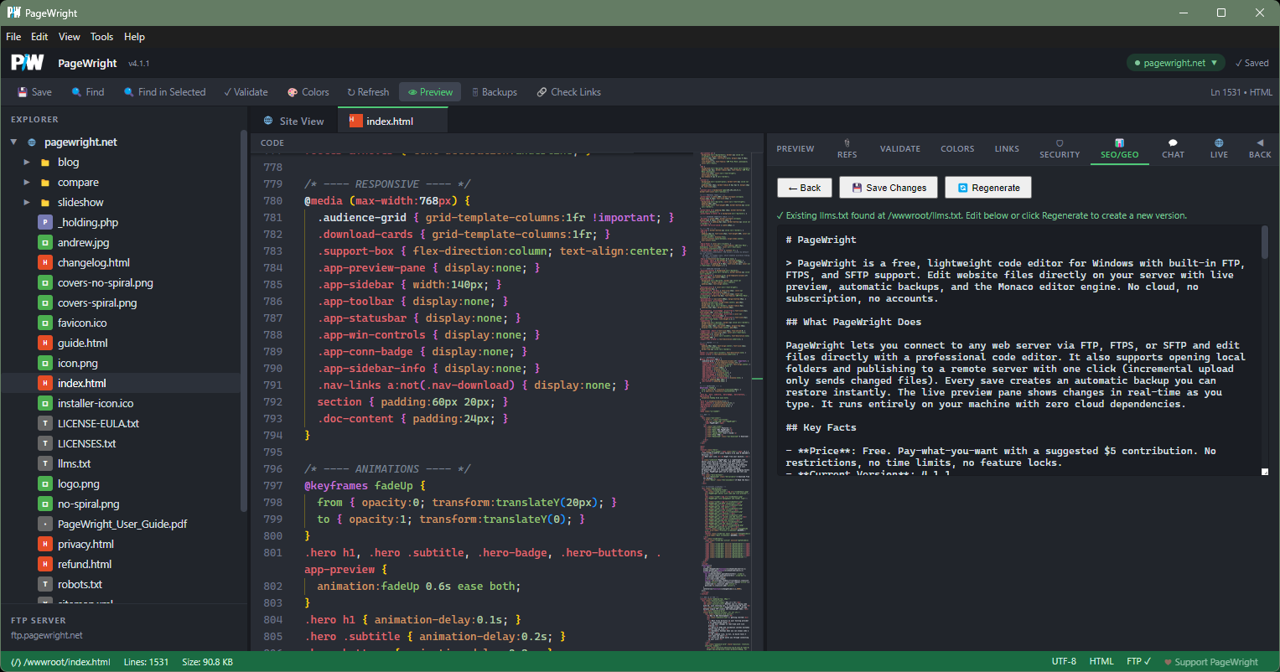
PageWright uses the Monaco editor — the same engine behind VS Code. Syntax highlighting, IntelliSense, bracket matching, minimap, multi-cursor, and 50+ languages.
FTP / FTPS / SFTP
PageWright connects to virtually any web host. Plain FTP, encrypted FTPS, or SSH-based SFTP. PageWright encrypts your credentials with AES-256-GCM on disk.
Live Preview
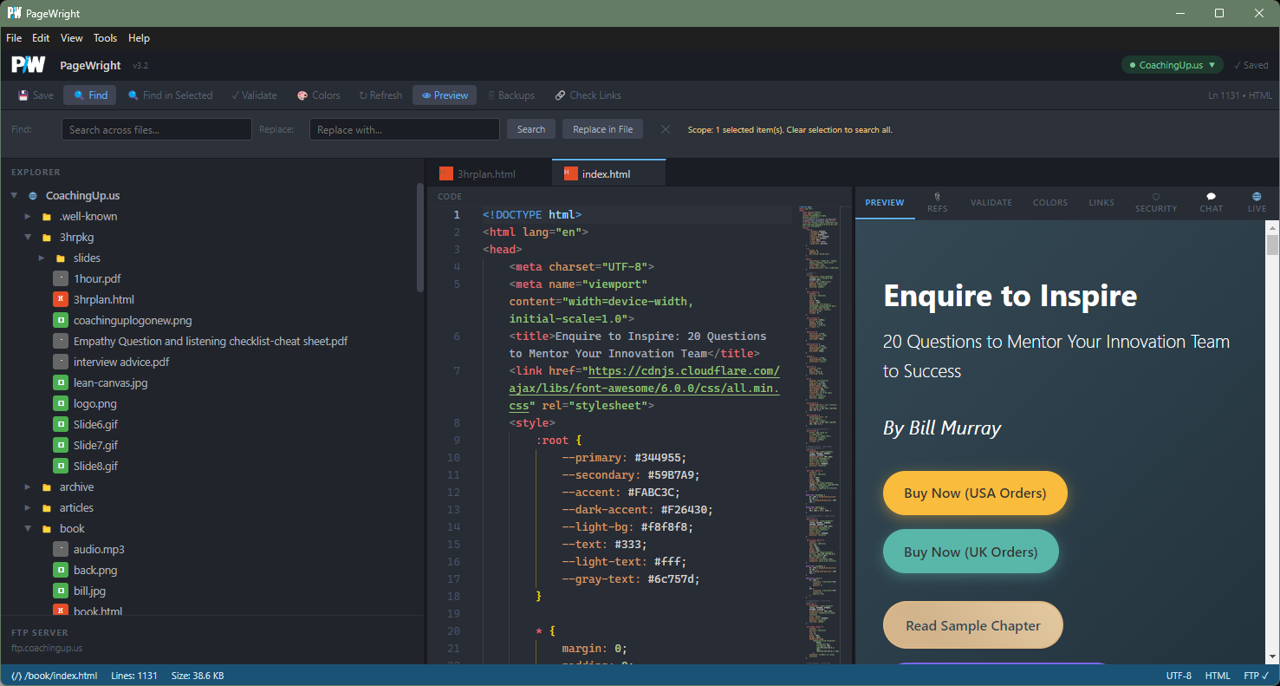
PageWright's live preview pane updates as you type, showing changes in real-time alongside your code. Toggle between right, below, or hidden layouts. Use Live Server Preview to see your actual site with PHP rendered.
Automatic Backups
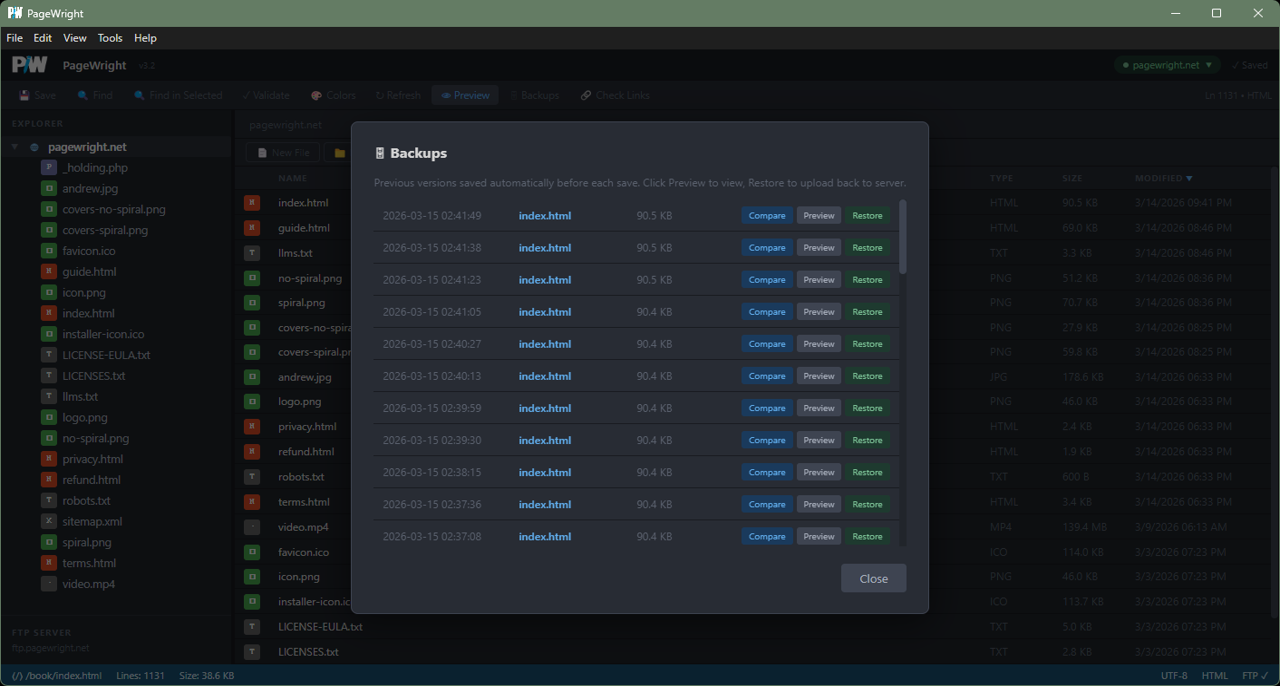
PageWright creates a timestamped backup with every save. Browse previous versions, preview them, or restore with one click. Never lose work again.
AI Chat
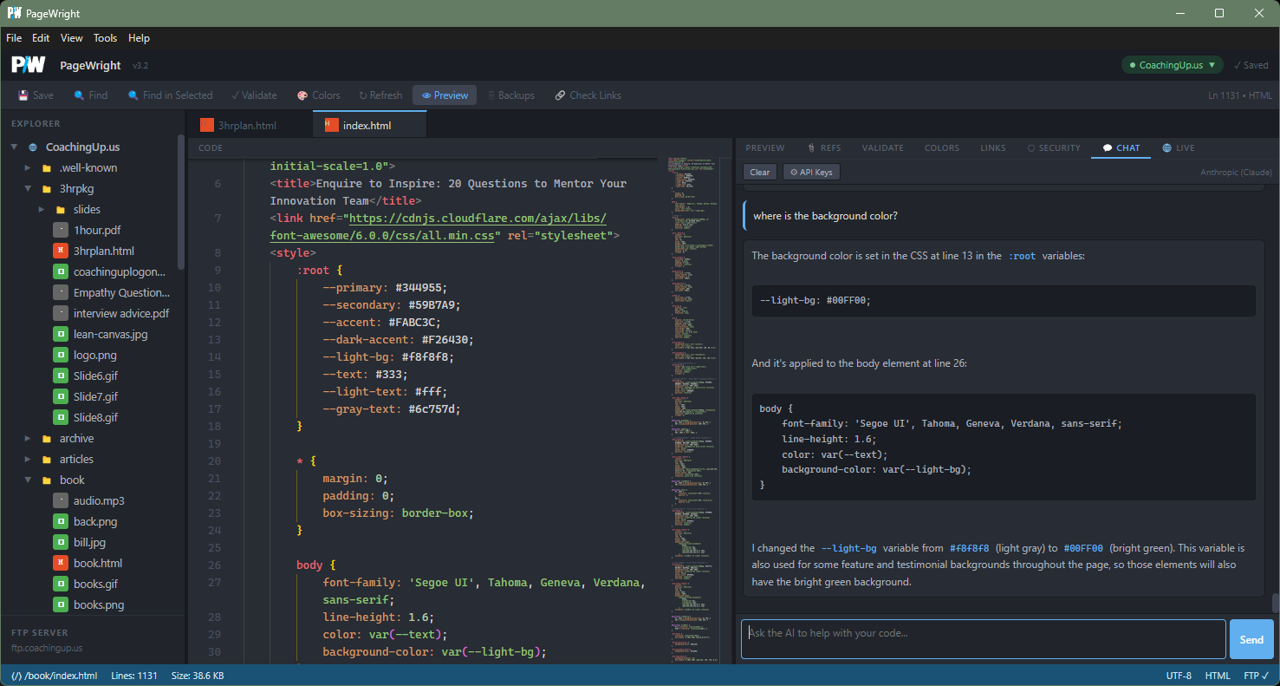
Describe what you want in plain English. PageWright's AI chat sees your current file and returns modified code you can apply with one click. Bring your own API key from Anthropic, OpenAI, or Google Gemini.
SEO/GEO Engine
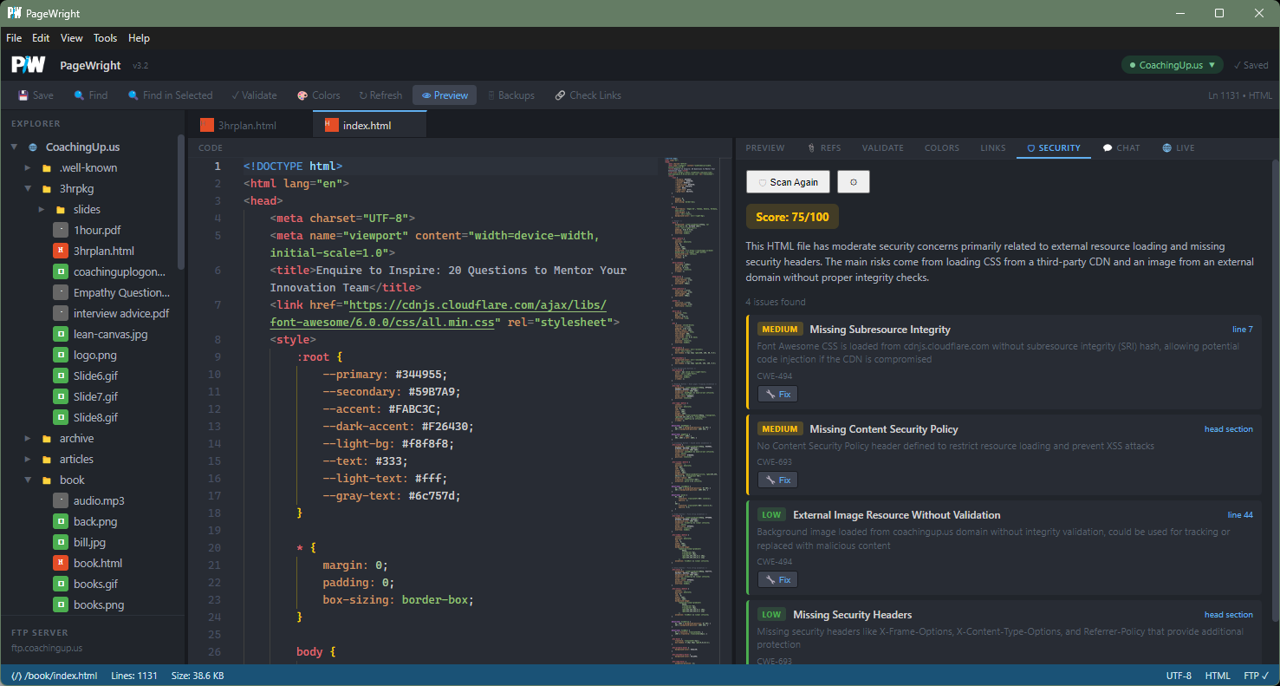
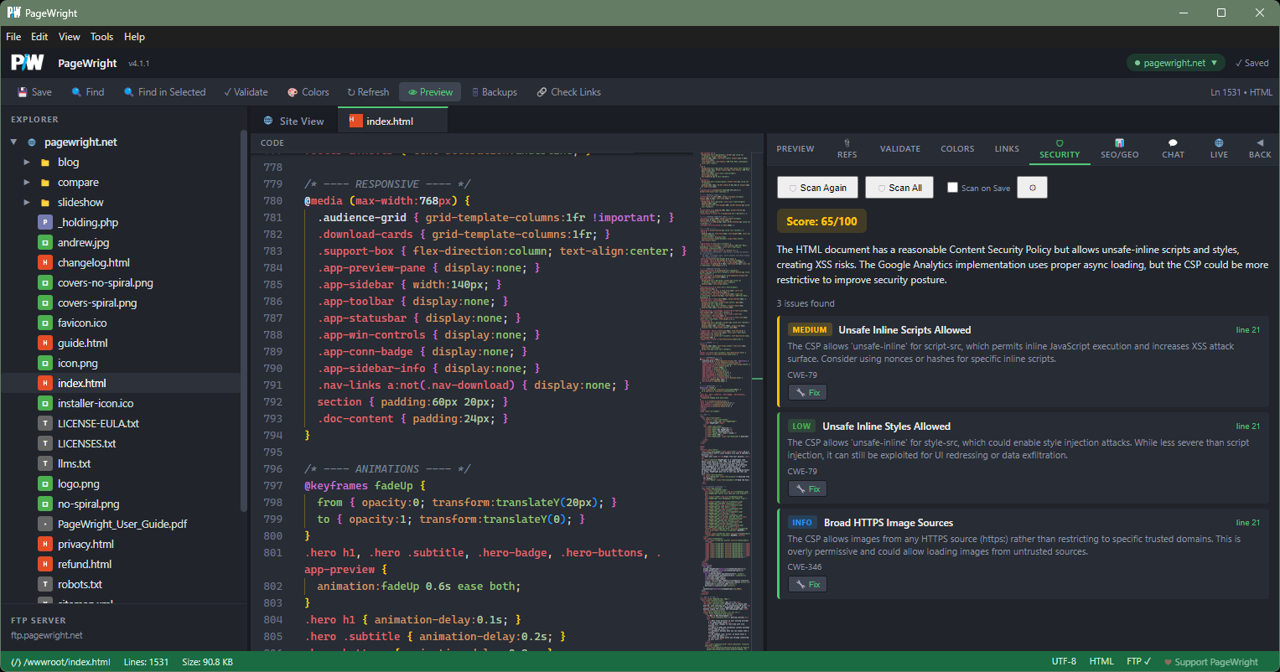
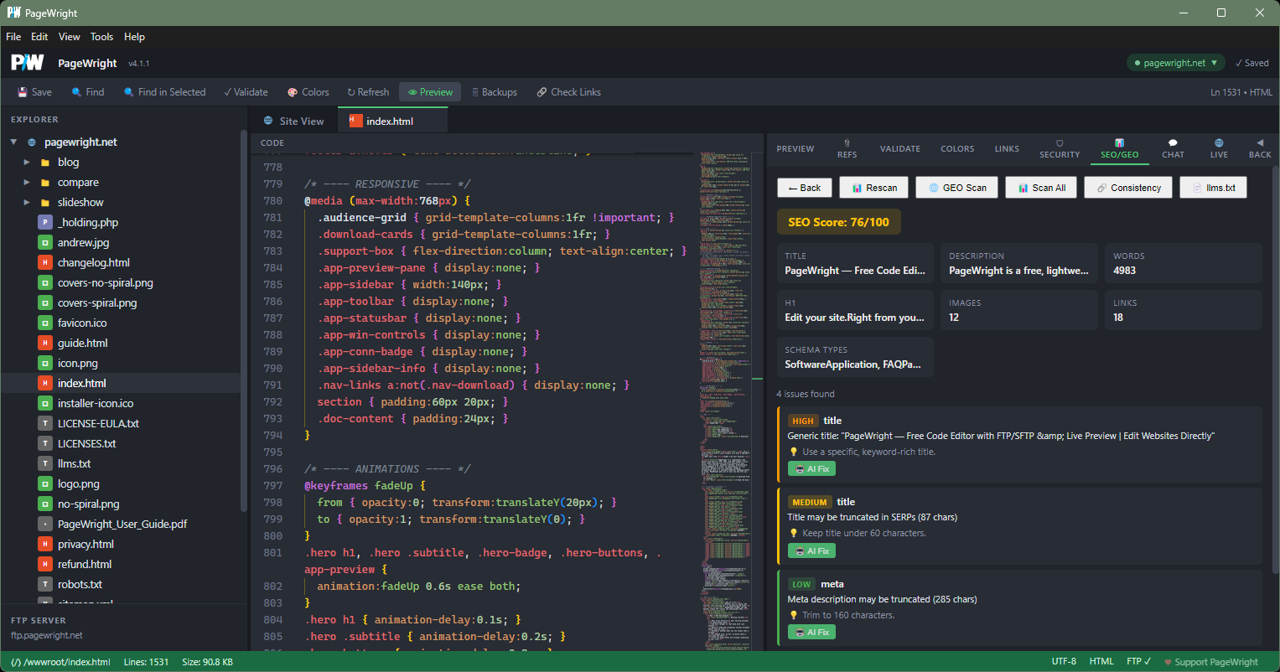
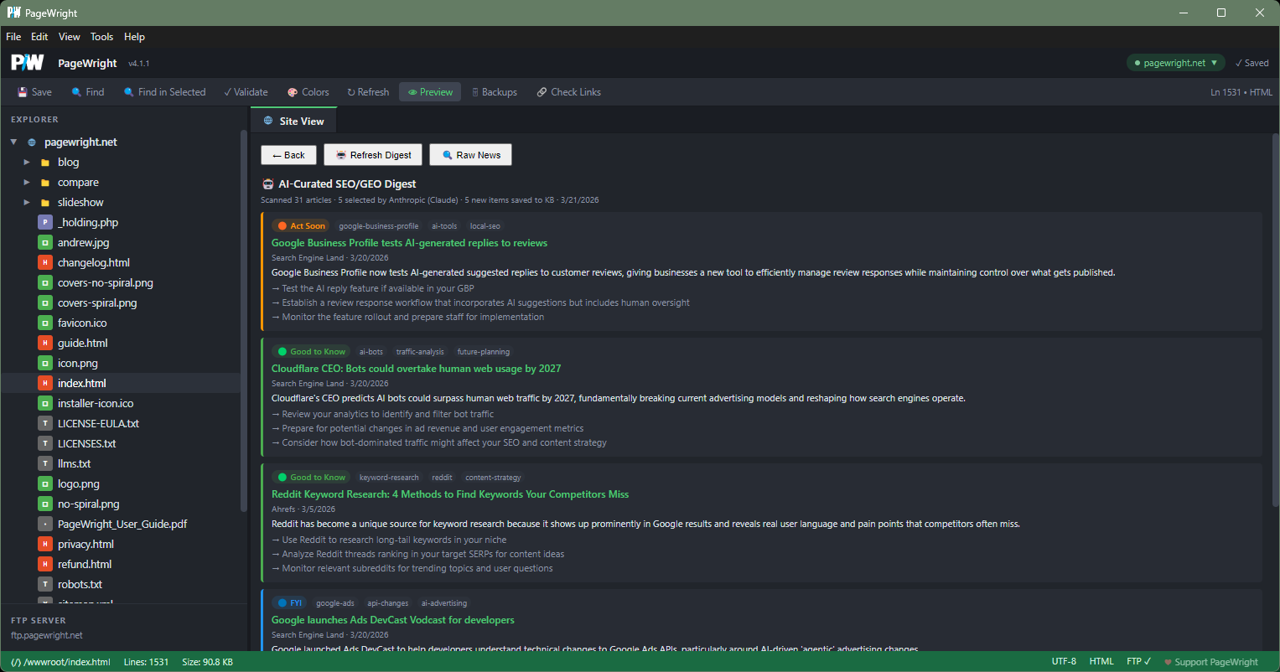
PageWright audits every page for SEO issues with a 0–100 score and severity-ranked findings. Check AI discoverability with GEO scans, generate llms.txt, and get one-click AI Fix patches.
The fastest path from code to live site
Built for the way people actually build websites
Most web developers don't need Kubernetes. They don't need CI/CD pipelines. They have a website on a hosting provider, and they need to edit the files. PageWright is built for exactly that workflow: open a file on your server, edit it with a professional code editor, see the changes live, and save. Your site is updated in seconds.
The vibecoder's deployment tool
Vibe coding is changing how websites get built. You describe what you want to an AI — ChatGPT, Claude, Cursor, Bolt, Lovable, Replit — and it generates the code. But then what? You still need to get that code onto your server. PageWright closes the loop: paste AI-generated HTML, CSS, PHP, or JavaScript directly into the editor, see it render in the live preview, and hit save to push it live. The automatic backup system means you can experiment fearlessly — if the AI-generated code doesn't work, restore the previous version with one click.
A modern replacement for Expression Web
When Microsoft discontinued Expression Web 4 in 2012, thousands of web developers lost their favorite tool. Nothing else quite replicated its workflow: connect to an FTP server, browse files visually, edit with live preview, and manage your site in one window. PageWright brings that workflow back with modern technology — a Monaco editor with IntelliSense, SFTP support, encrypted credentials, and a dark theme that's easy on the eyes during long editing sessions.
How PageWright compares
vs. FileZilla / Cyberduck: Those are file transfer clients. You download, edit elsewhere, re-upload. PageWright eliminates that cycle — click a file and you're editing it with live preview, validation, and backups. Full comparison: PageWright vs FileZilla →
vs. VS Code + FTP extension: VS Code is a phenomenal editor, but bolting on FTP via extensions is clunky. PageWright uses the same Monaco editor engine but wraps it in a purpose-built interface with live preview, visual file management, broken link checking, and zero configuration. Full comparison: PageWright vs VS Code + FTP →
vs. Dreamweaver: Adobe Dreamweaver costs $22.99/month — that's $275/year. PageWright is $5.99 once. Both offer FTP editing and live preview, but PageWright runs locally with no Adobe account, no Creative Cloud, and no ongoing subscription. Full comparison: PageWright vs Dreamweaver →
vs. Notepad++ with NppFTP: Notepad++ is a great text editor, but its FTP plugin is bare-bones — no live preview, no file management, no backups. PageWright provides the full website editing experience in one integrated tool.
The "last mile" for vibe-coded websites
You've vibe coded a website. Now what? That's the question every vibecoder hits after generating code with Lovable, Bolt, Replit, v0, or a conversation with ChatGPT or Claude. For full-stack apps, platforms like Vercel and Heroku handle deployment. But for traditional websites hosted on shared hosting, cPanel, or a VPS with an FTP login, there's a gap. You generate beautiful HTML, CSS, and JavaScript with AI, and then you're stuck figuring out how to get it onto your server.
PageWright fills that gap. It's the last mile between AI-generated code and a live website. Paste your vibe-coded HTML into the editor, see it render in real-time, save to push it live. No deployment pipeline, no CLI commands, no Git. Just the code and your server. And because PageWright backs up every file before saving, you can iterate fearlessly. Try the AI's suggestion, and if it doesn't work, restore the previous version in one click. It's the fastest way to go from "the AI wrote this" to "it's live on my site." Read the guide: How to deploy a vibe-coded website →
Runs entirely on your machine
PageWright has no cloud component. There's no account to create, no data uploaded to third-party servers, and no subscription to cancel. Your credentials are AES-256-GCM encrypted and stored locally. The only network connections PageWright makes are ones you initiate: your own FTP/SFTP server, your own site URL for live preview, an optional update check against pagewright.net, and — only if you add your own API key — the AI provider you choose. When you close it, it's off. No background processes, no telemetry, no tracking.
Get up and running
Installation
Windows Installer
Best for everyday use. Installs PageWright on your system with shortcuts so you can find it like any other app.
- Download PageWright Setup 4.1.5.exe from the download section below
- Run the installer, agree to the license, and choose your installation directory
- Launch PageWright from your Start Menu or Desktop shortcut
Your settings and backups are stored in your user profile (AppData). To remove PageWright, use the standard Windows uninstaller in Settings > Apps.
First Launch
When you first open PageWright, you'll see a Quick Start Guide that walks you through the basics. You can always access this again from Help → Quick Start Guide in the menu bar.
The welcome screen shows any saved site connections. Click Connect to Site to add your first one.
System Requirements
- Desktop App: Windows 10 or 11 (64-bit)
- Network: Internet connection to reach your FTP/SFTP server
- Disk space: ~200 MB for the installed app
Adding a Site
Click the connection badge in the top-right corner (or the Connect to Site button on the welcome screen) to open the connection dialog. You'll need:
- Site Name — a label for this connection (e.g., "My Blog")
- FTP Host — your server address (e.g.,
ftp.yourhost.com) - Port — auto-set based on protocol (21 for FTP, 990 for FTPS, 22 for SFTP)
- Username and Password — your FTP/SFTP credentials
- Starting Directory — optional root path (e.g.,
/public_html) - Site URL — your live website URL (enables Live Preview)
- Protocol — FTP, FTPS, or SFTP
Choosing a Protocol
| Protocol | Port | Security | When to use |
|---|---|---|---|
| FTP | 21 | None (plain text) | Legacy servers, local/trusted networks only |
| FTPS | 990 | SSL/TLS encrypted | Most traditional web hosts (GoDaddy, HostGator, etc.) |
| SFTP | 22 | SSH encrypted | Modern hosts, VPS, cloud servers (DigitalOcean, AWS, etc.) |
Where to Find Your Credentials
Your FTP/SFTP credentials are typically found in:
- cPanel: FTP Accounts section — your host, username, and password are listed there
- Hosting welcome email: Most providers send FTP details when you sign up
- Plesk: Websites & Domains → FTP Access
- Custom VPS: Use your SSH username/password with SFTP on port 22
Multiple Sites
PageWright saves all your site connections locally. Click the connection badge to see the dropdown list of saved sites and switch between them. Each site remembers its own host, credentials, starting directory, and URL.
You can also run multiple PageWright windows simultaneously — each opens on its own port (3000, 3001, etc.) so you can work on several sites at once.
Credential Security
Your passwords are encrypted with AES-256-GCM and stored in a local file. The encryption key is generated uniquely on your machine. No credentials are ever transmitted to any server other than your own FTP/SFTP host.
Opening Files
Click any file in the file tree (left sidebar) to open it in the editor. Files open in tabs — you can have multiple files open at once and switch between them. Double-click a file in the folder view to open it as well.
The Editor
PageWright uses the Monaco editor, the same engine that powers VS Code. You get:
- Syntax highlighting for HTML, CSS, JavaScript, PHP, JSON, XML, Markdown, Python, and 50+ other languages
- IntelliSense — auto-completion for HTML tags, CSS properties, and JavaScript
- Bracket matching — matching brackets and tags are highlighted
- Multi-cursor editing — hold Alt and click to add cursors
- Minimap — bird's-eye view of your file on the right edge
- Word wrap — long lines wrap to fit the window
- Find & Replace — Ctrl+H for in-file find and replace
Saving
Press Ctrl+S to save the current file. This uploads the file to your server immediately. A backup is created automatically before each save.
The save status indicator in the title bar shows:
- No dot — file is saved and up to date
- Yellow dot — unsaved changes
Find in Files
Press Ctrl+Shift+F to search across all files on your site. This is useful for finding where a class is used, tracking down a string, or preparing for a global replacement.
You can also right-click on a folder or selection in the file tree and choose Find in Selected to narrow the search scope.
Instant Preview
The preview pane on the right shows a live rendering of your HTML as you type. It updates automatically after a brief pause. CSS changes are reflected in real-time too — if your stylesheet is cached, PageWright inlines it into the preview.
For non-previewable files (JavaScript, JSON, text files, etc.), the preview pane automatically hides to give you full-width editing space. Use the 👁 Preview button in the toolbar to toggle it manually.
Live Server Preview
Click the 🌐 Live button to see your actual live site rendered in the preview pane. This is especially useful for PHP files — the Instant Preview can only show the HTML structure, but Live Preview shows the fully rendered page from your server.
HTML/CSS Validation
Click the Validate tab in the preview pane to see real-time validation results. Monaco checks for:
- Unclosed or mismatched HTML tags
- Invalid CSS properties or values
- JavaScript syntax errors
- Vendor prefix warnings and compatibility issues
Warnings and errors also appear as squiggly underlines directly in the editor.
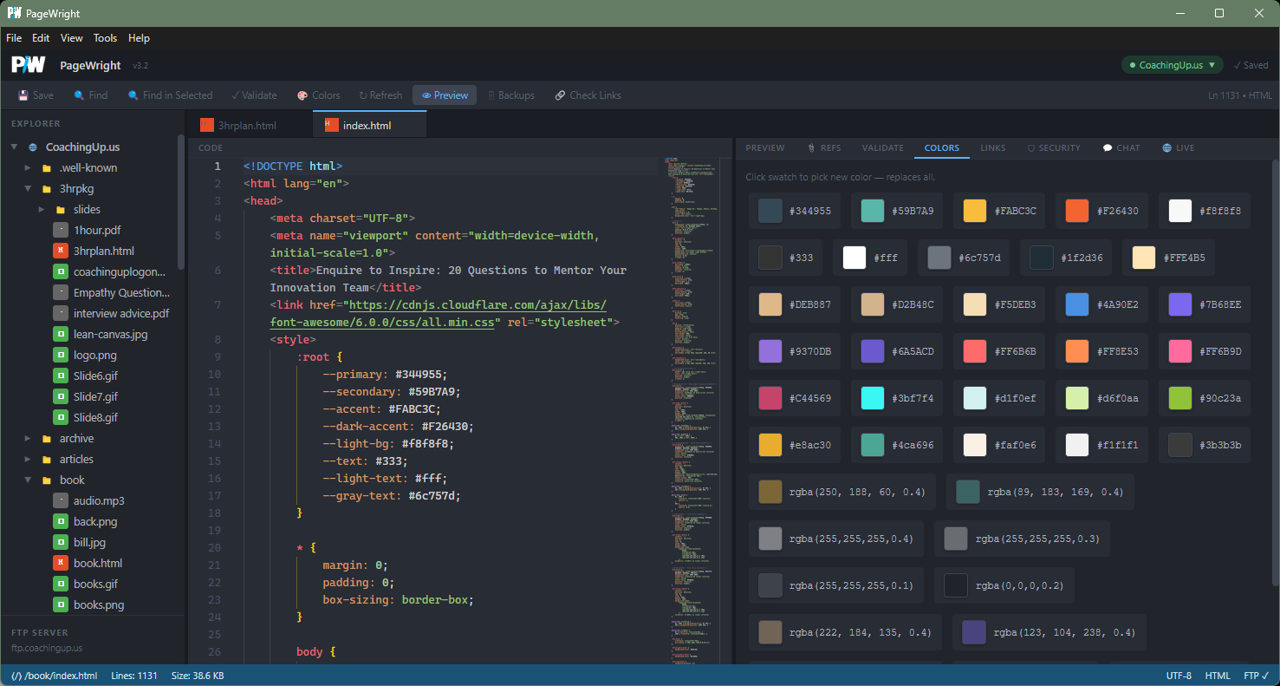
Color Picker
The Colors tab extracts every color value from your file and displays them visually. Click any color to copy its hex value to your clipboard.
Image Preview
Click an image file in the file tree to see it rendered in the preview pane with its dimensions displayed.
Image Editor
Crop, resize, rotate, flip, and adjust brightness, contrast, and saturation — all without leaving PageWright. Remove background colors with the Color-to-Transparent tool. Save overwrites the original; Save As creates a copy and offers to update all <img src> references in your open HTML files automatically. The image opens full-pane with its own tab and unsaved-changes indicator.
File Tree
The left sidebar shows your site's file structure. Click folders to expand them. Click files to open them in the editor. The tree auto-sizes its width to fit your longest filename.
Folder View
Below the file tree, the main area shows a detailed folder view with columns for name, size, and modification date. Click column headers to sort. This view supports:
- Multi-select — hold Ctrl to select multiple files
- Drag & drop — drag files between folders to move them
- Upload — drag files from your desktop into the folder view
- Split pane — open two folder views side by side for easy file organization
Right-Click Menu
Right-click on any file or folder in the tree or folder view to access:
- New File — create a blank file in this directory
- New Folder — create a subdirectory
- Upload Here — upload files to this directory
- Rename — rename the selected item
- Duplicate — copy a file with a new name
- Delete — remove the file or folder (with confirmation)
Broken Link Checker
Click 🔗 Check Links in the toolbar to scan your site for broken internal links. PageWright crawls all HTML and PHP files, extracts links and image sources, and checks if the targets exist on your server. Results show each broken reference with the file it was found in.
How Backups Work
Every time you save a file, PageWright downloads the current server version and stores it locally before uploading your changes. This means you can always get back to any previously saved state.
Browsing Backups
Click 🗄 Backups in the toolbar to see all backups for the current file. Each entry shows the timestamp when the backup was created. You can:
- Preview — view the backed-up version in the preview pane
- Restore — upload the backed-up version back to your server, replacing the current file
Backup Storage
Backups are stored locally on your machine in the backups folder, organized by site name and file path. They take up minimal space (they're just text files), and you can delete old ones manually if needed.
backups folder if you're migrating to a new machine.Multiple Instances
You can open PageWright multiple times to work on different sites simultaneously. Use File → New Window or press Ctrl+Shift+N to launch a new instance. Each instance automatically finds an open port (3000, 3001, 3002, etc.). A built-in site lock system prevents two instances from connecting to the same FTP server at the same time, avoiding file conflicts.
Configuration Files
| File | Purpose | Location |
|---|---|---|
sites.json | Saved site connections (encrypted passwords) | App data folder |
.pagewright-key | Encryption key for passwords | App data folder |
backups/ | File backup versions | App data folder |
These are stored in %APPDATA%\PageWright.
.pagewright-key file. It's the encryption key for your stored passwords. Each installation generates a unique key.Visual Editing
For HTML files, click the ✏️ Visual Edit button to make the preview pane content-editable. You can click and type directly in the rendered page, and your changes sync back to the code editor. Useful for quick text corrections.
Troubleshooting
Can't connect to my server
- Double-check your host, username, and password
- Try a different protocol — some hosts only support SFTP, not FTP
- Make sure your IP isn't blocked by your host's firewall
- Check that the port is correct (21 for FTP, 22 for SFTP, 990 for FTPS)
Preview shows broken images
- PageWright proxies images through the server — make sure you're connected
- Images using absolute URLs to external sites will work normally
- PHP-generated images won't appear in Instant Preview — use Live Preview instead
Live Preview shows a blank page
- Make sure you've set the Site URL in your connection settings
- The URL should start with
https://orhttp:// - Some sites block embedding — Live Preview strips X-Frame-Options headers, but very strict CSP headers may still block it
Keyboard Shortcuts
| Ctrl+S | Save current file (upload to server) |
| Ctrl+Shift+F | Find across all files |
| Ctrl+H | Find & replace in current file |
| Ctrl+G | Go to line number |
| Ctrl+D | Select next occurrence of current word |
| Ctrl+/ | Toggle line comment |
| Alt+Click | Add cursor at click position |
| Alt+↑/↓ | Move line up/down |
| Ctrl+Shift+K | Delete line |
| Ctrl+] | Indent line |
| Ctrl+[ | Outdent line |
| Ctrl+Z | Undo |
| Ctrl+Shift+Z | Redo |
| F1 | Open command palette |
PageWright inherits all of Monaco's keyboard shortcuts. Press F1 to open the command palette and search for any action.
Common questions
Get PageWright
no recurring charges
Get PageWright with every feature included. No trials, no feature locks, no monthly fees. Pay once, use forever.
Windows Installer
Best for most people. Adds PageWright to your Start Menu and Desktop so you can find it like any other app. Includes an uninstaller if you change your mind.
↓ Buy & Download Installer — $5.99~100 MB · Windows 10/11
PageWright is a Windows desktop app — it runs on Windows 10 and 11.